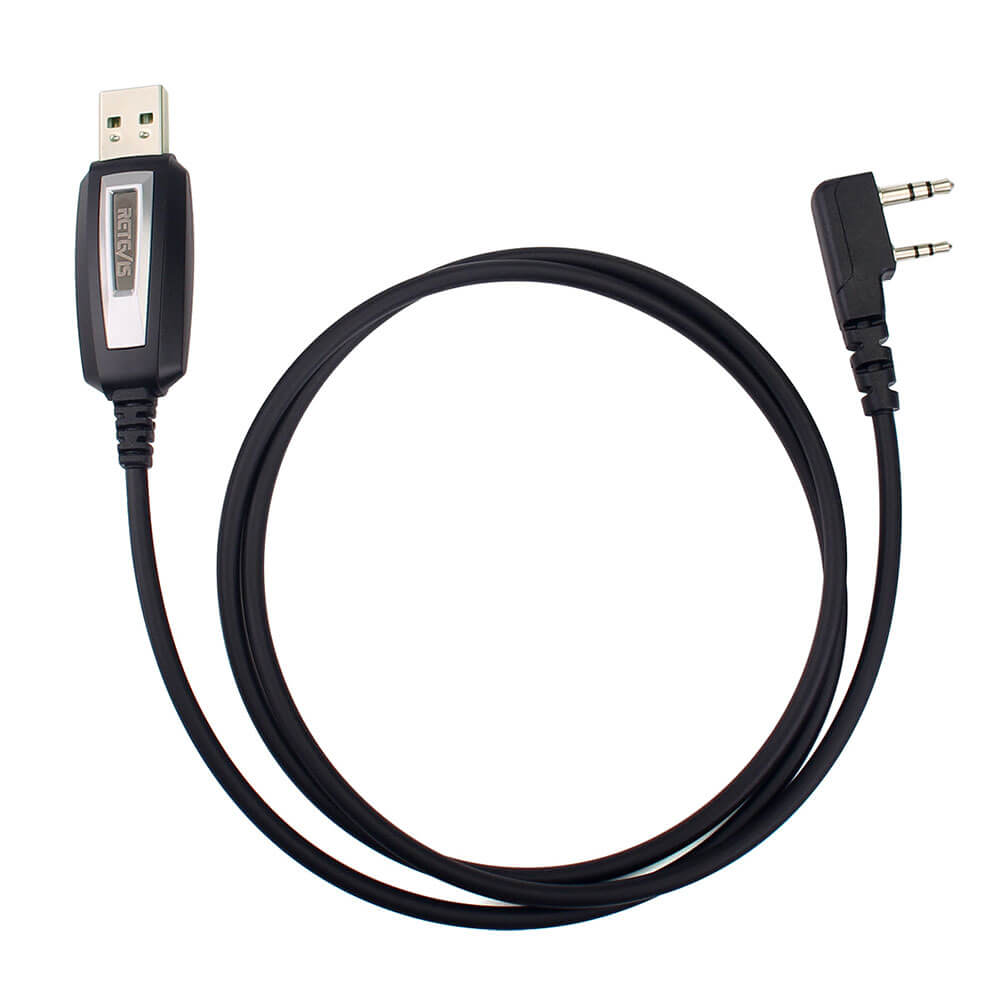
2 PIN Programming Cable For RA89R G Ailunce H1
I gave this product 4 stars mainly because of the help I recieved from the staff at alwaysonline. However, I do feel that since issues like this arise with the purchase of a new product that perhaps this cable should be included with the purchase of the 2 way radios.
2 PIN Programming Cable For RA89R G Ailunce H1
The converter works great. Use driver software that you down load on line and watch a utube video to learn how to set it up. Save your self a headache and don't bother with the software that comes with the cable, mine didn't work.
2 PIN Programming Cable For RA89R G Ailunce H1
works OK But could be better you will need to go to the http://www.miklor.com for good drivers. I used windows XP just for easy use. I programed a Baofeng Black UV-5R V2+ Plus and a wouxun kg-uv3d. Every think is working very well. On a side note my wouxun kg-uv3d was Locked from the key lock on the front panel I use the cable to disable the lock.
2 PIN Programming Cable For RA89R G Ailunce H1
Part came quicker than promised. Required some slight trimming of the plug on the one side in order to get a secure fit on Baofeng radio. I think this is moreso due to the radio design than the cable, as this cable also works with other radios. Have made several programming schemes in CHIRP since, and the cable has made the upload process very quick.
2 PIN Programming Cable For RA89R G Ailunce H1
Good news – the cable worked and allowed me to program my Baofeng UV-5R from the comfort of my desktop. However, this is not a “plug and play” cable and will require some effort on your part, as well as reliance on information and software available without charge on another website, to get it to work.The first step is to put aside the mini-disc with the software and drivers that came with the cable. You will not be using it. What you need to do initially is to go to the Miklor.com website and download to your computer CHIRP memory programming software. When that’s downloaded, then the next step is to download from the Miklor site the correct driver for the cable. Apparently, the cable only works with a 2007 version of the driver software. After you download the driver from Miklor, the version of Windows installed on your computer will try to update that driver. The Miklor site explains this in detail and walks you through the process of installing the driver and preventing your computer from updating it.Before you connect the radio to the computer, using the VFO/MR button, put your radio in the channel mode and scroll through the memories. The Baofeng UV-5R has 128 memory slots (0-127). For some reason, my radio’s memory slots 0-20, and 127 had assigned frequencies in them. Since they weren’t frequencies that I wanted, and since CHIRP can’t overwrite frequencies already in the radio’s memory, I used the memory channel delete process from the radio keypad to delete all but 2 of those frequencies. To delete from the keypad, press [MENU] 2 8 [MENU]. Then using the scroll buttons, go to the channel number you want to delete and press [MENU] [EXIT]. I left two frequencies in the memory just for test purposes, as explained below.Now that you’ve installed the CHIRP software and the appropriate cable driver to your computer and have cleared out unwanted memory frequencies from your radio, next connect the computer to the Baofeng with the cable and turn on the Baofeng. Before you can begin to program memories into the radio, there is one more step you must take. You will need to create a template in CHIRP for your radio. You do this by downloading the radio’s memories to CHIRP using the “download from radio” command in CHIRP. As I did this, the two test memory channels that I left in the Baofeng’s memory populated the memory channel chart in CHIRP displayed on my computer screen. This confirmed that the cable was working and that the radio and the computer were communicating.Once you have successfully downloaded from the radio, you can finally begin to program memories on your computer using the CHIRP software. When finished, just upload the programmed memories from the computer to the radio using the “upload to radio” command in CHIRP and you’re done. To check your work, turn off the Baofeng; disconnect the cable; turn on the Baofeng; place it in channel mode using the VFO/MR button; and you should be able to scroll through all the new channels that you just added.CHIRP is easy to use. For the cost of the cable, it’s worth a shot. Programming memories from your computer is substantially easier than doing so from the radio’s keypad.I give the cable 4 stars because as delivered, it’s useless. However, if you download the appropriate software and follow the steps outlined on Miklor.com, you should be able to get it to work. Good luck.
2 PIN Programming Cable For RA89R G Ailunce H1
Great price, everything just how I expected it :-)
2 PIN Programming Cable For RA89R G Ailunce H1
No complaints it’s seems to be built well and iv used it on 2 of my radios one one is a Retevis RB17P and Beafeng uv-85 and had no issues would recommend
2 PIN Programming Cable For RA89R G Ailunce H1
Works good. Does as it is designed to do
2 PIN Programming Cable For RA89R G Ailunce H1
You will need this to program the radios. Works perfectly.
2 PIN Programming Cable For RA89R G Ailunce H1
This cable is great for programming handheld radios with CHIRP. But, and it's a big butt, it doesn't work in Windows 11. Everything is great on Windows 10 or lower though.



 Google
 Amazon