

Table of Contents
Retevis Ailunce HA2 Setup Guide: Programming, APRS and Firmware
- Posted by:Retevis
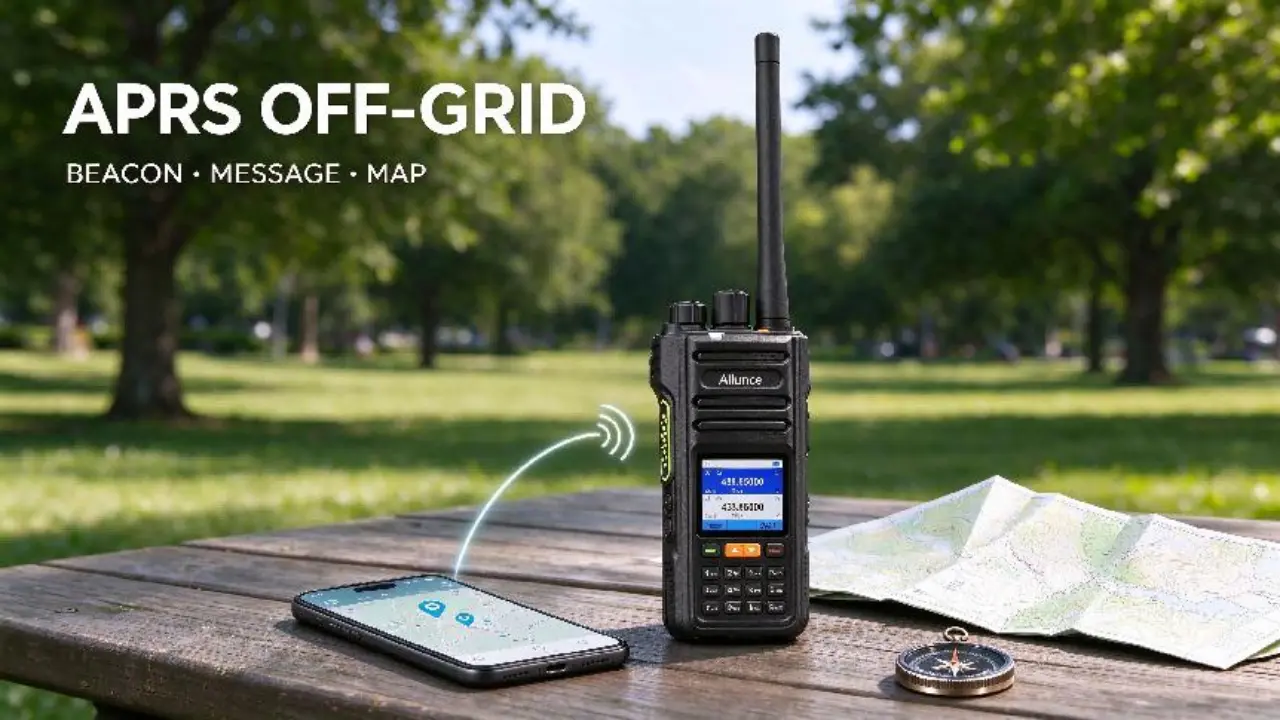
Retevis Ailunce HA2 handheld ham radio connected to smartphone for APRS mapping on outdoor table
Once configured the Retevis Ailunce HA2 works well. The two most common sticking points for owners are programming channels and getting APRS on the air.
Below is the order that experienced owners go. Starts with firmware, then programming, then allows APRS. Menu paths and version numbers shown here are from the August 2026 firmware release.
Step 1: First update the firmware
The older HA2 firmware had some known issues. Owners have reported a reversed channel knob, an APRS transmit frequency that changes by itself and Bluetooth drops on iOS devices. The aprs.fi app version V1.0.0.06.004-2, released August 2026, corrects these and adds BLE KISS TNC mode and full iOS support. First, update. The APRS steps below depend on this.
The most reliable method is the cable. Download Retevis HA2 support package from the official Ailunce support page. It contains the CPS software, BIN firmware file and manuals. Connect the radio to the computer using the provided USB programming cable and back up the current configuration. Turn radio off and hold PTT and PF1 keys while turning radio on to enter DFU mode. Choose the BIN file in the CPS and start flash. When it’s done, the radio will reboot itself. Check the result in the radio info screen, the firmware version should be 0.0.06.004.
There is also a Bluetooth OTA update through the official OTA app. Have the phone and radio within one metre. Ensure the battery is charged. Do not switch off any of the devices during the process. After successful update, the Bluetooth firmware version should be 2.16.
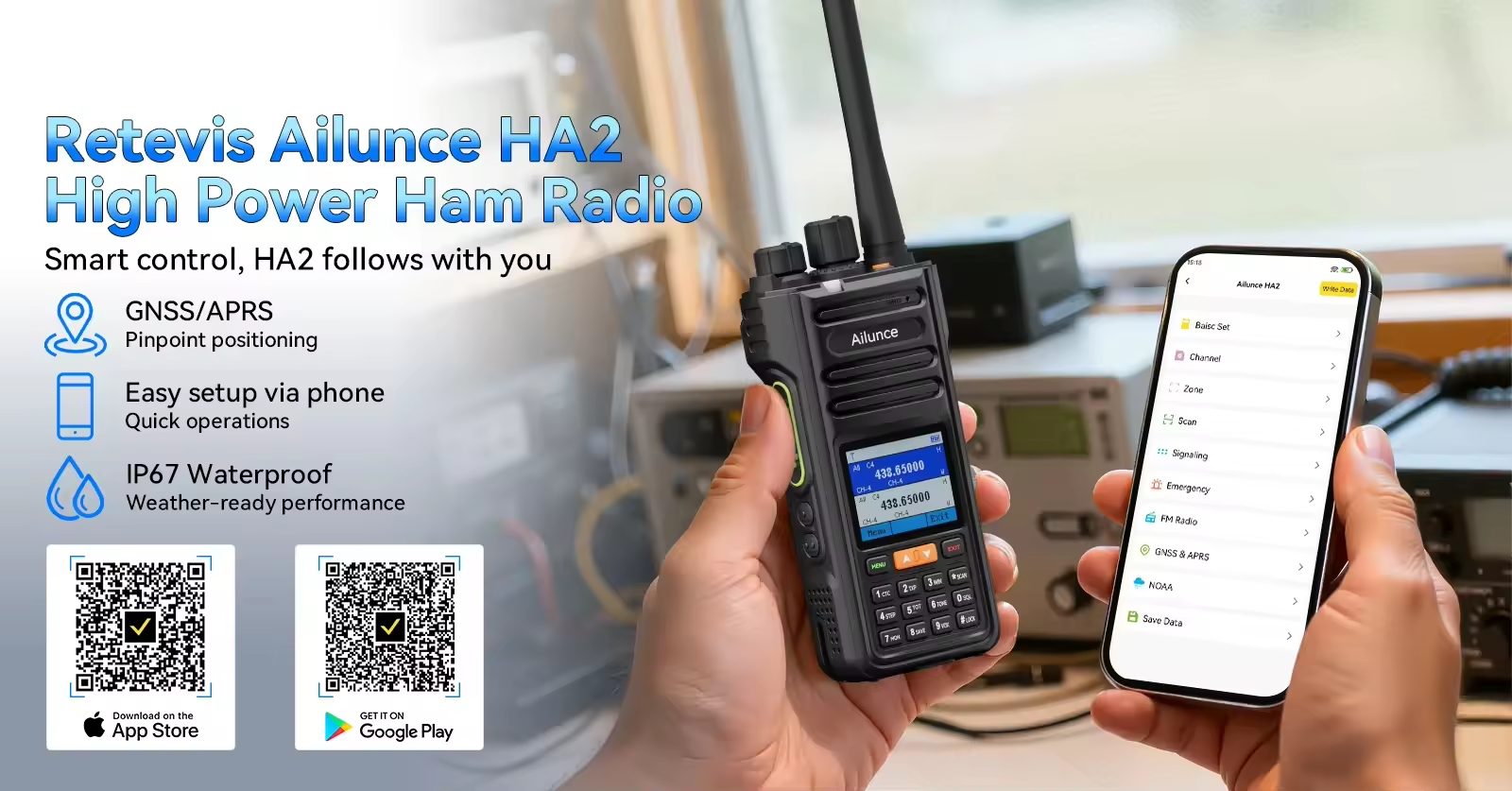
You may also download the APP by clicking the links below:
iOS: RETEVIS App for iOS
Android: RETEVIS App for Android
Step 2: Select your programming path
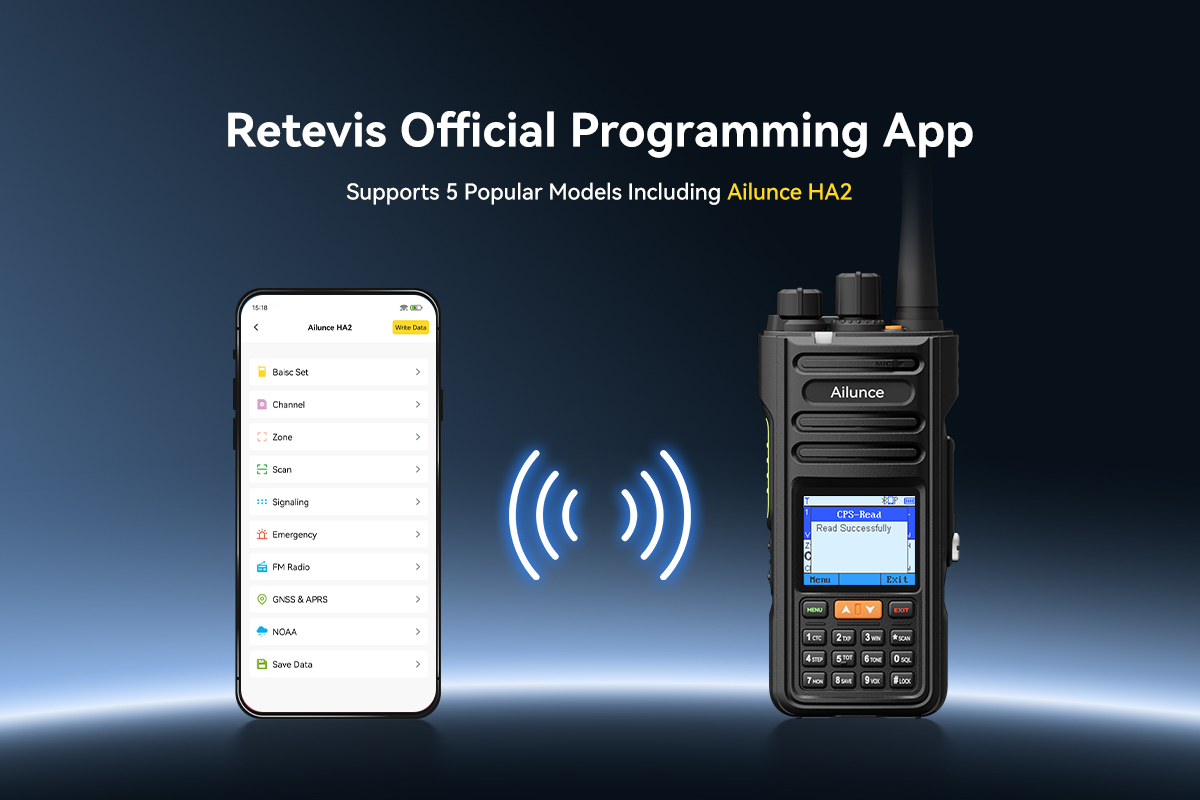
The HA2 has two ways to load channels, each suited to a different job. The Bluetooth app is useful for quick field edits. Add a repeater, change a CTCSS or DCS tone or rename a channel from the phone without a cable or computer. Connect via Bluetooth, read the radio configuration, make the change and write it back. One thing to know before you rely on it: frequency digits are entered one box at a time, so a long list of numbers will be slow to enter by hand.
Cable and CPS fit the first setup and bulk work. Type the channel list into a spreadsheet, save as CSV, import the file into CPS and write everything to the radio in one pass. As you go organise channels into zones, the radio has 16 zones with up to 64 channels per zone for a total of 1024.
Many owners just use a simple practical division. Use the cable for the first load at home, and save the app for changes made on a hilltop or at an event.
Step 3: Turn on APRS
The HA2 can run APRS on either the radio or a phone. They both start with the same three channel settings.
First, tune to the normal APRS frequency for your area. In North America that is 144.390 MHz. In much of Europe it is 144.800 MHz. Second turn off CTCSS and DCS on that channel. Subtones prevent the radio from decoding APRS data packets. 3) Turn the squelch down to let weak packets through.
For radio only APRS, turn on the GNSS receiver, go to the APRS menu and enter your call sign and SSID. Set a beacon interval and enable position reporting. The radio then transmits its locati0n at that interval, with the built-in GNSS fix, and APRS messages can be written and read from the same menu. It works without a phone.
Follow this sequence KISS TNC for phone link Power on Bluetooth in the BT Power menu. Select KISS TNC BLE for Bluetooth mode, SPP variant if older Android phone does not show BLE choice. Connect the radio with Bluetooth settings on the phone. In aprs.fi enter your call sign, set the SSID to -7 for a handheld, choose a station symbol and leave the packet path set to the default WIDE1-1,WIDE2-1. Then open More TNC and DSP modem and select the HA2. The status should say Connected.
APRS messages are limited to 67 characters per message. When the recipient receives the message, the app shows it as delivered. This is because the receiving station sends back an automatic acknowledgement. All of the above steps are done by radio frequency. The cellular network is not used for GNSS positioning and APRS so the system still works without phone service.
Step 4: Verify the power setting
The HA2 has four output levels, selectable from the radio menu: 1, 2.5, 5, and 10 watts. The 10-watt level is sometimes referred to as the ultrahigh setting by owners.
Field reports reveal one quirk worth knowing. You can reset the channels back to the 5-watt level by reprogramming the radio back to a configuration, so check the power setting after every programming session. Use 10 watts only when range or terrain actually demands it. Lower levels save battery when working near repeaters.
Step 5: Check the field before using it
Checking the five things to an event with you before you using the HA2 handheld radio.
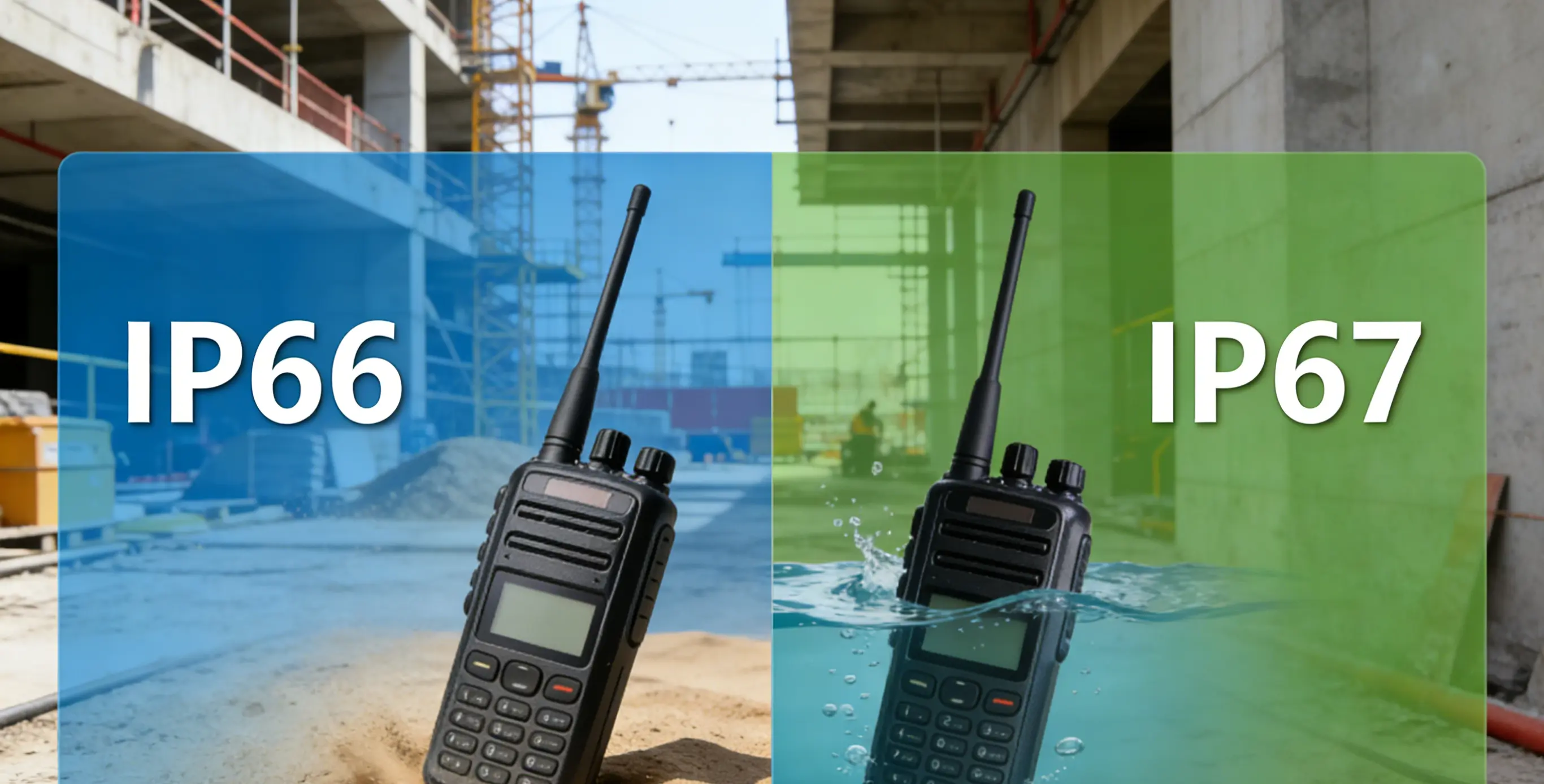
Locate your own beacon on aprs.fi using any nearby internet-connected receiver. Send a test message to local station and check delivered status. Get a GNSS fix outside (it takes much longer to get a satellite lock inside buildings). Make sure port covers are in place. The IP67 (dust tight and protected against immersion for 30 minutes in 1 meter of water) rating is dependent on the seals and does not mean the radio is dive rated. Finally, plan for power during your trip; the 2800mAh battery charges via USB-C, and a power bank handles multi-day use.
Half an hour for the entire setup: firmware, channels, aprs and a field test. Do it in that order and the Retevis Ailunce HA2 becomes a working tool on every trip, instead of a project that still needs configuring at the trailhead.








 Google
 Amazon
Comments
No data Yet