Read This First: Use an iPhone for the Bluetooth update. Use a computer and programming cable for the radio firmware update.
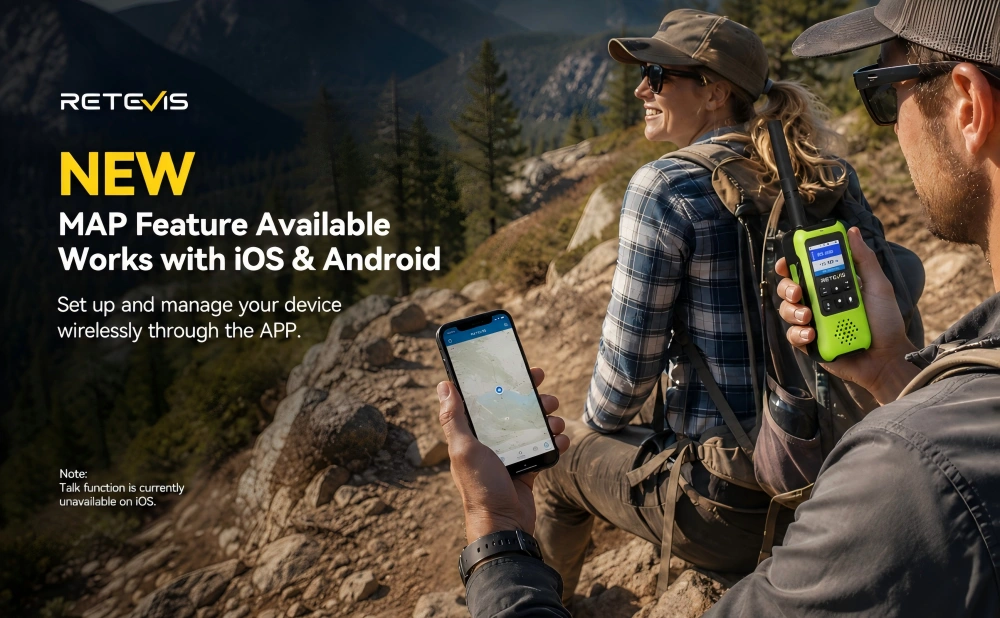
What's New:This update adds the Map feature to the iOS app, including navigation, creating or joining teams, sharing locations, and setting geofences (electronic boundaries).
Open the link below in Safari on your iPhone or iPad.
RETEVIS BT OTA Test Page: Open the RETEVIS BT OTA Test Page
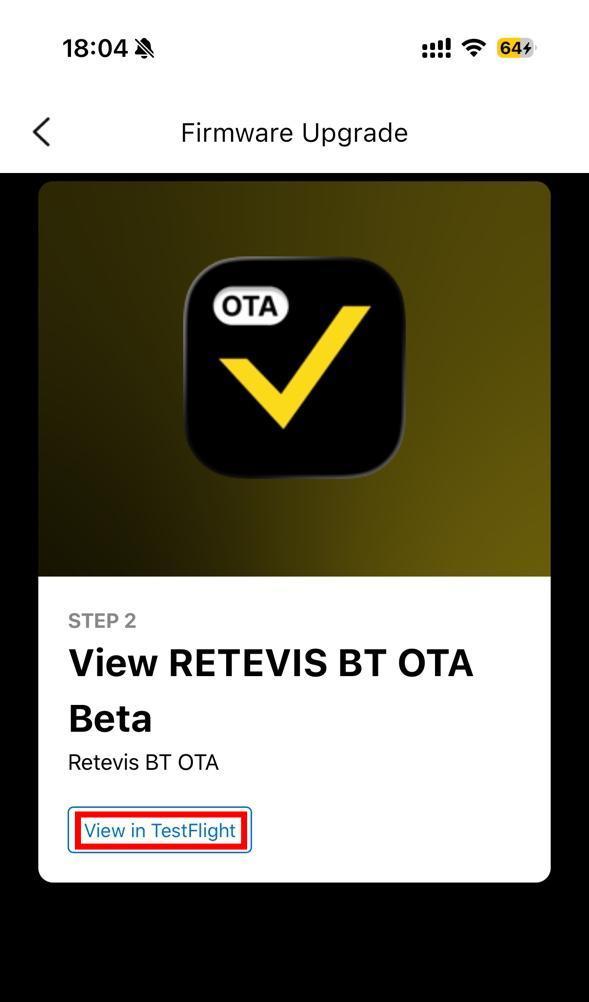
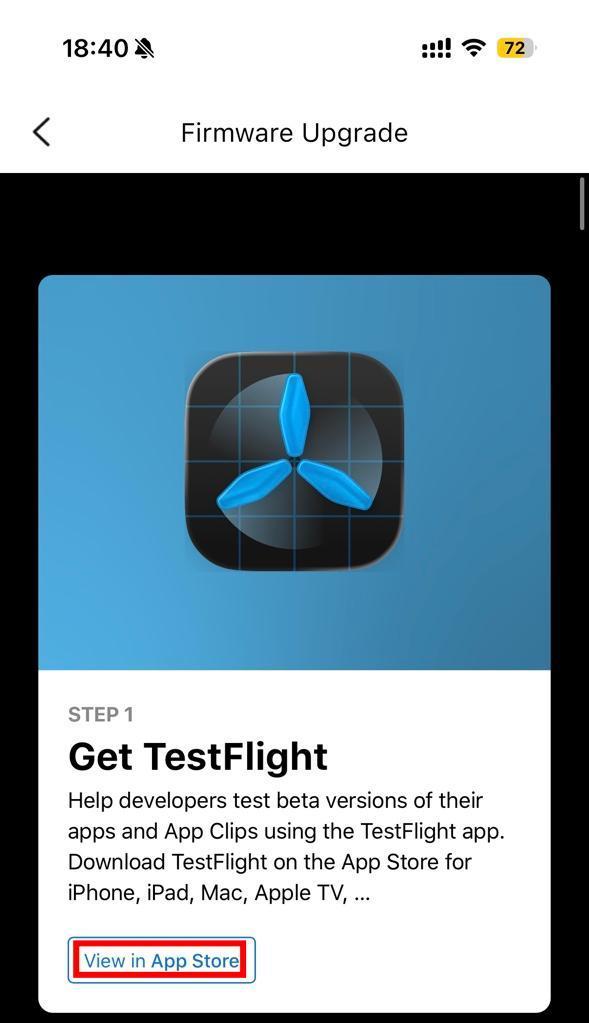
Install TestFlight, return to the test page, tap “View in TestFlight,” then install and open RETEVIS BT OTA.
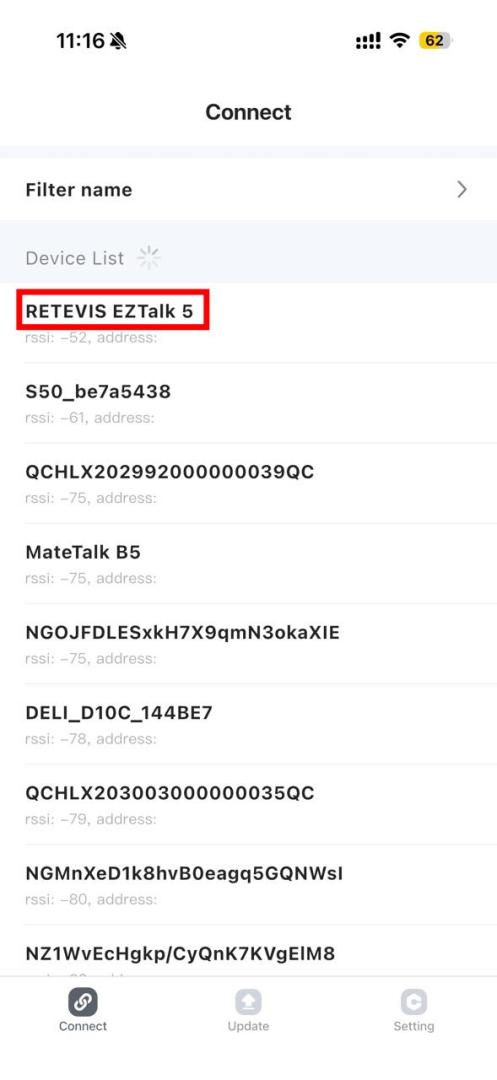
Disconnect EZTalk 5 from the RETEVIS app or any other Bluetooth app, then close that app.
Power on EZTalk 5. In the Connect tab, tap “RETEVIS EZTalk 5” and confirm that the status shows “Connected.”
Open the Update tab, select the EZTalk 5 Bluetooth firmware file, then tap the yellow “Update” button.
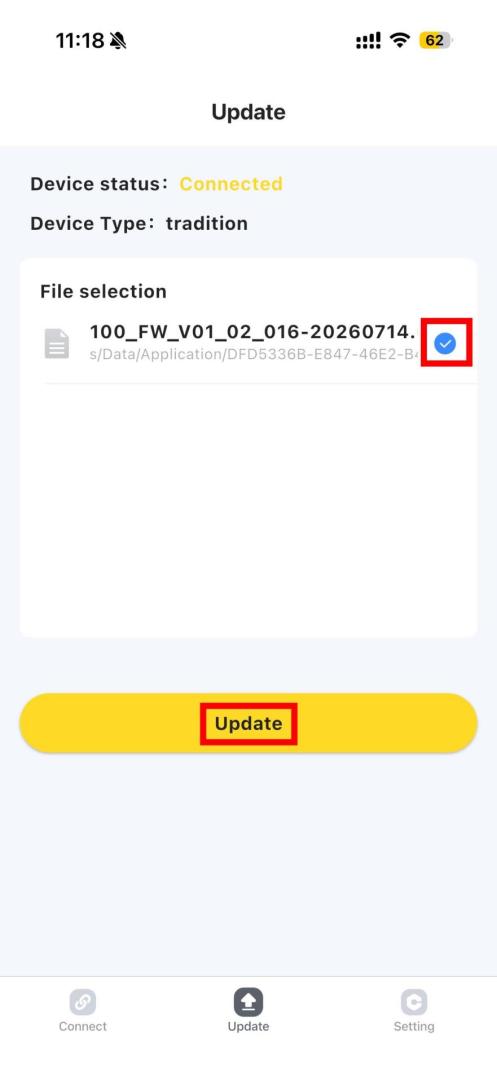
When “Upgrade completed” appears, tap “Confirm,” then reconnect the radio in the RETEVIS app.
Update Tool: Firmware Upgrade V1.0.0 (ZIP)
Windows driver.: Download EZTalk 5 V1.0.00.017 (BIN)
Update Steps
If Device Manager shows “PL2303TA Does Not Support Windows 11 and Later,” install a compatible driver manually:
MacOS Driver Installation
Install the PL2303 driver from Prolific or the Mac App Store. If macOS blocks it, go to System Settings > Privacy & Security, click “Allow,” restart the Mac, reconnect the cable, and confirm that /dev/cu.usbserial… appears in Terminal.
Linux Driver Installation
The PL2303 driver normally loads automatically. Check for /dev/ttyUSB0 with “ls /dev/ttyUSB*”. If needed, run “sudo modprobe pl2303”; for access errors, run “sudo usermod -aG dialout $USER”, then sign out and back in.
Extract the Firmware Upgrade ZIP file, then open Firmware Upgrade from the extracted folder.
Power off EZTalk 5 and connect the cable. Hold PTT + PF1, press the Power key, and release the keys when the indicator turns green.
Select the following settings:
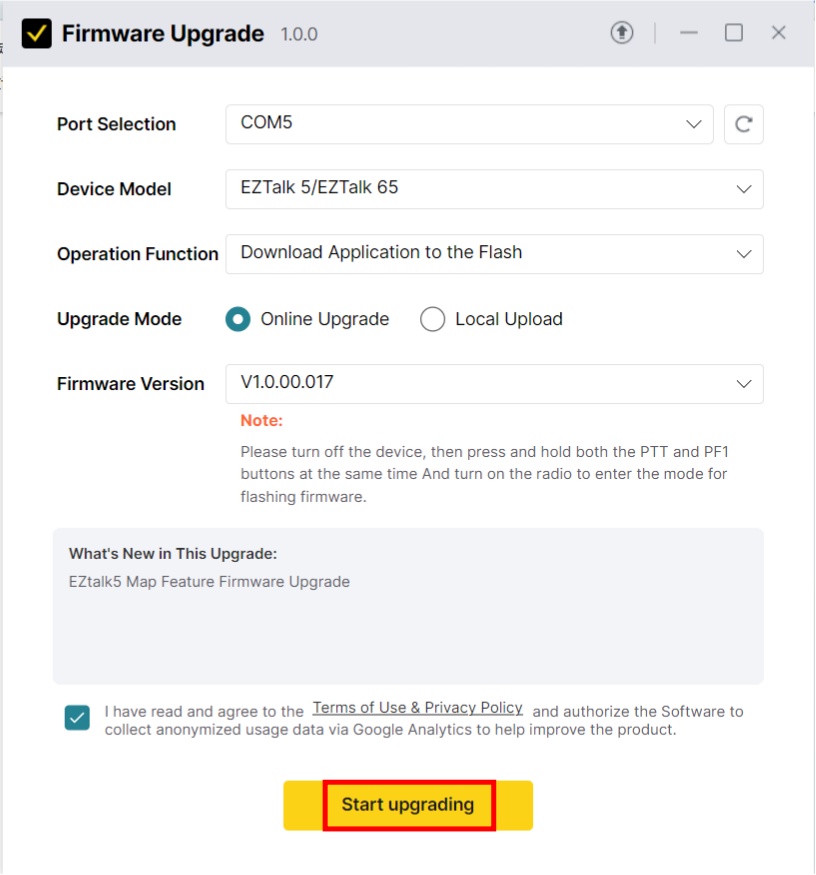
Select the agreement checkbox, then click “Start upgrading.” Do not disconnect the cable or close the program.
When “Download firmware successfully” appears, close the message and wait for the radio to restart.
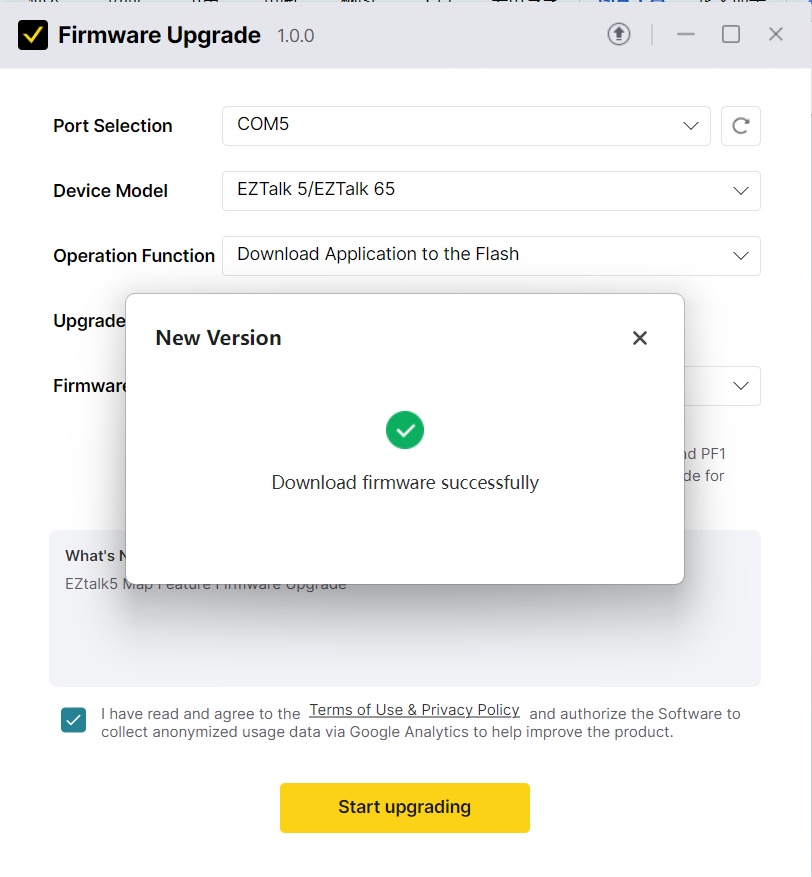
Reconnect the radio in the RETEVIS app, check the firmware version.
Check the COM port and cable driver, enter firmware update mode again, and retry. Never use firmware for another model.
No data Yet








 Google
 Amazon