

Table of Contents
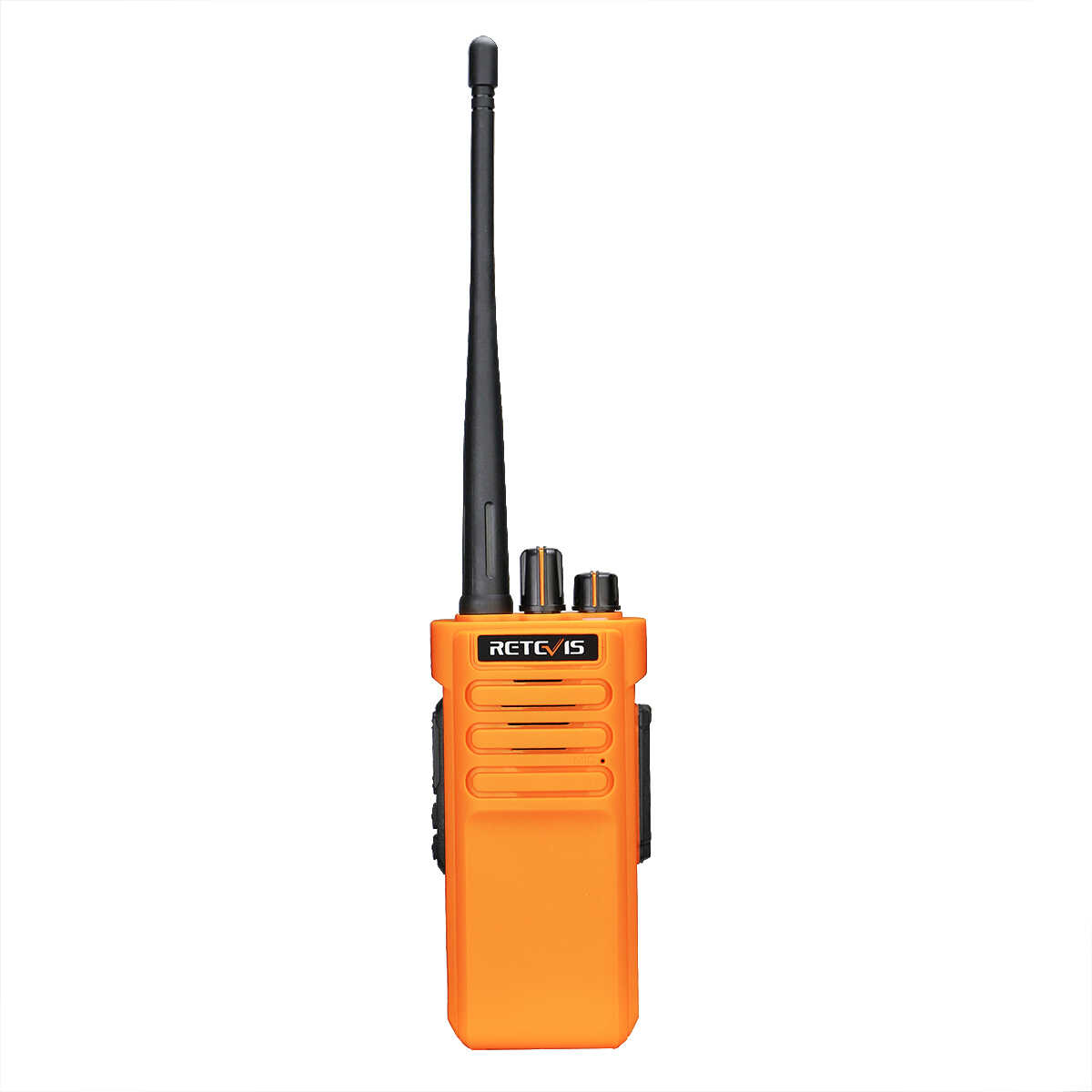
Retevis L51 / L71 / L2 PoC Radio Activation Guide
- Posted by:Retevis
- 1 Comments
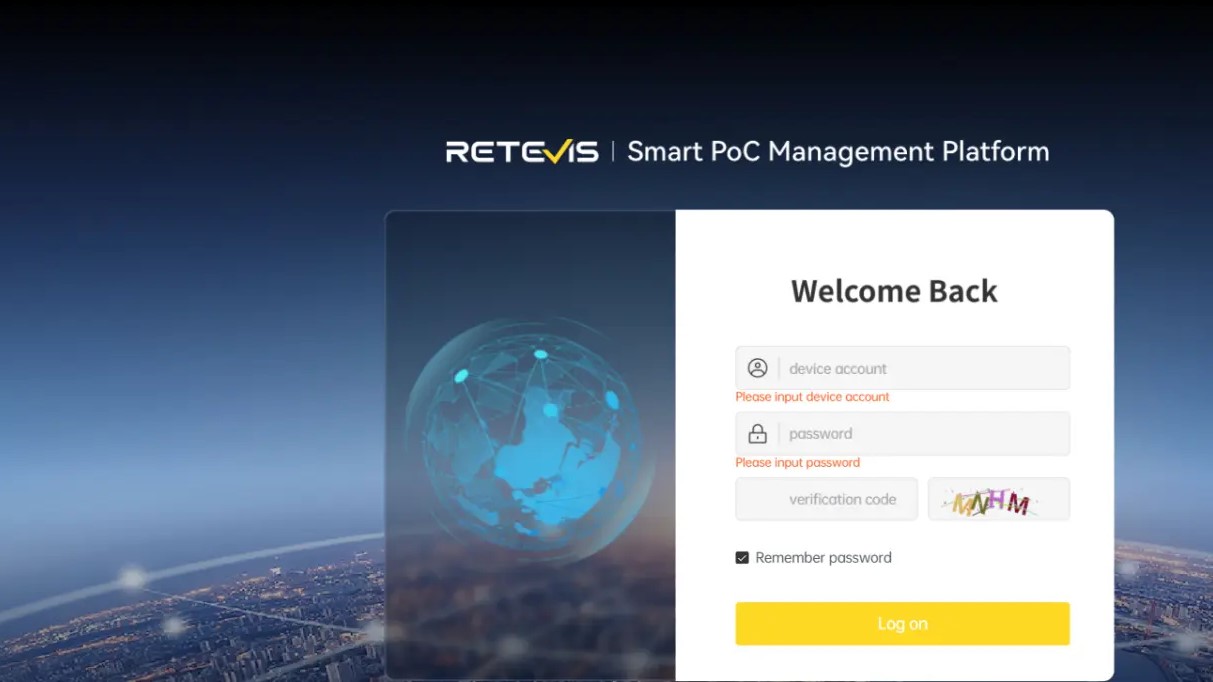
This guide walks you through activating your Retevis PoC radios step by step. Follow the instructions below. If you have any questions, please contact your sales representative.

Step 1: Apply for a Management Platform Account
After you place an order for the public PoC network service, we will help you set up or update your Management Platform account:
1.1 For Existing Account Holders
If you already have a Retevis Management Platform account (from a previous purchase), simply request an increase to your account quota directly within your existing account. Alternatively, you can contact Retevis support team to have your account migrated to the latest Management Platform. After the migration, you will be able to use features such as Retevis radio quick group formation.
1.2 For New Account Applicants
If this is your first time using the service, please provide the following information to your sales representative:
- Account Name (letters and numbers only; maximum 12 characters; no special symbols)
- Account Password
- Radio Model
- Quantity Purchased
Our after-sales support team will then create your Management Platform account and notify you.
Step 2: Platform Links
New Management Platform: https://retevispoc.com/management/login
Log in to the website using the username and password provided by Retevis support team.
Step 3: Device Preparation and Network Check
3.1 Install the SIM Card and Power On
- Remove the radio's battery cover.
- Insert the provided SIM card (make sure it is properly aligned).
- Reinstall the battery and turn on the radio.
- For L71 / L2 models: Wi-Fi connection is supported (network settings are optional).
3.2 Confirm Network Connection
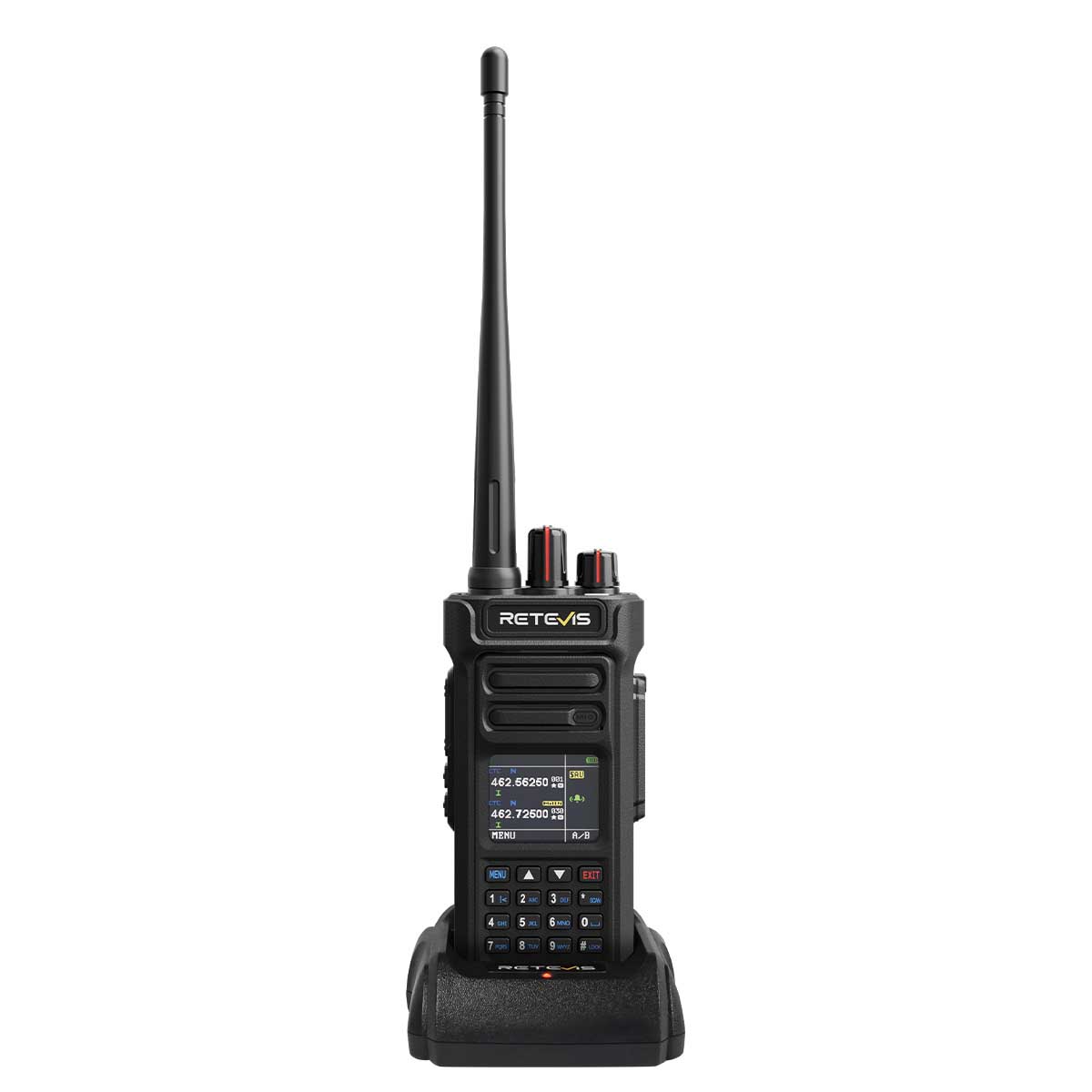
When the SIM card is recognized (indicating successful network access), the radio will display the mobile signal strength
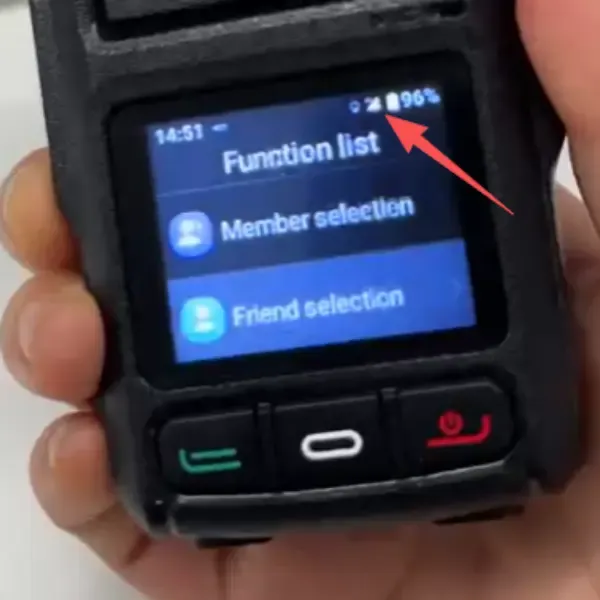
3.3 Verify Account and IP Address
Access the OTA programming interface from the radio:
Power on the radio → enter the PoC program menu → select "OTA Programming" (press twice to display details).
Please verify the following information:
- Account ID (pre-assigned to your device):
- Account: record the account shown on the screen.
The ACC or ACCOUNT number shown here will later be used to bind and activate the device.
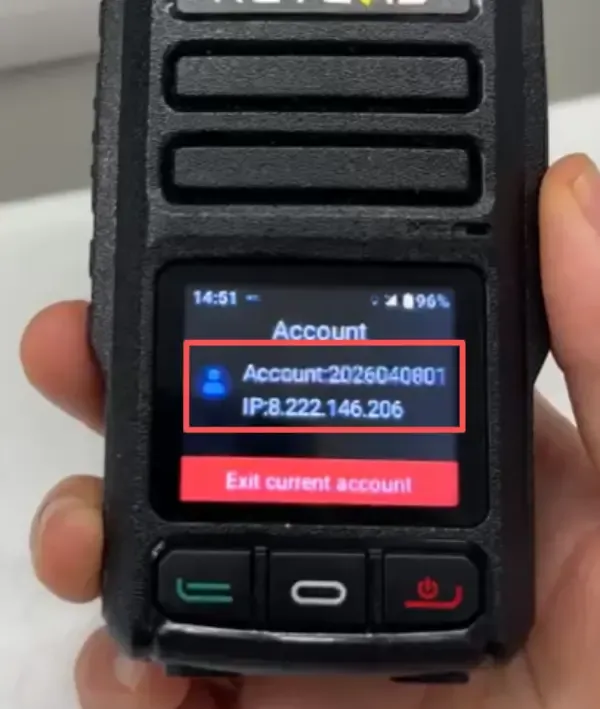
IP Address (must match your platform region): 8.222.146.206
Troubleshooting: If the IP address does not match the one above, log out of the account, update it to the latest IP, and log in again.
Step 4: Add Devices to the Management Platform
4.1 Log in to the Management Platform
Log in to the Management Platform for your specific region using the provided account credentials: https://retevispoc.com/management/login
4.2 Create a Device Group
- Click the "Groups" tab in the left-side menu.
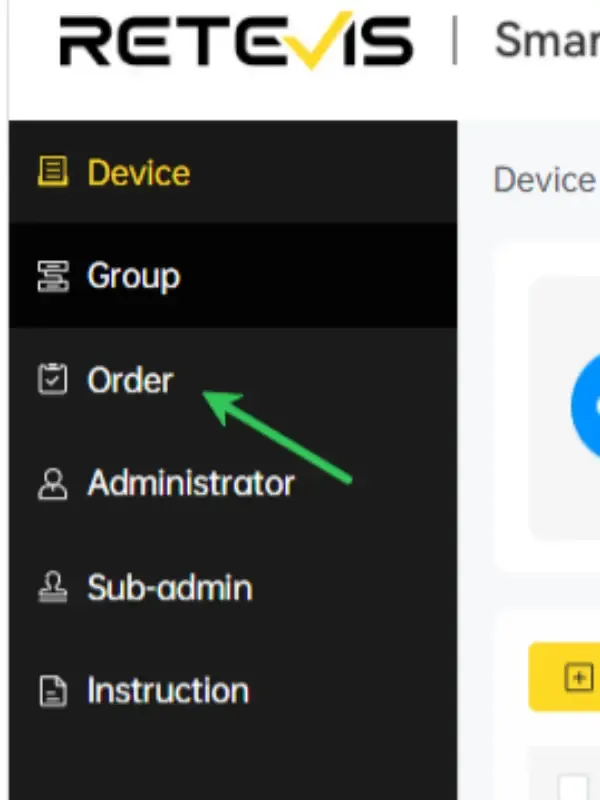
- Select "Add Group" → enter a group name (required).
- Click "Save" to complete group creation.
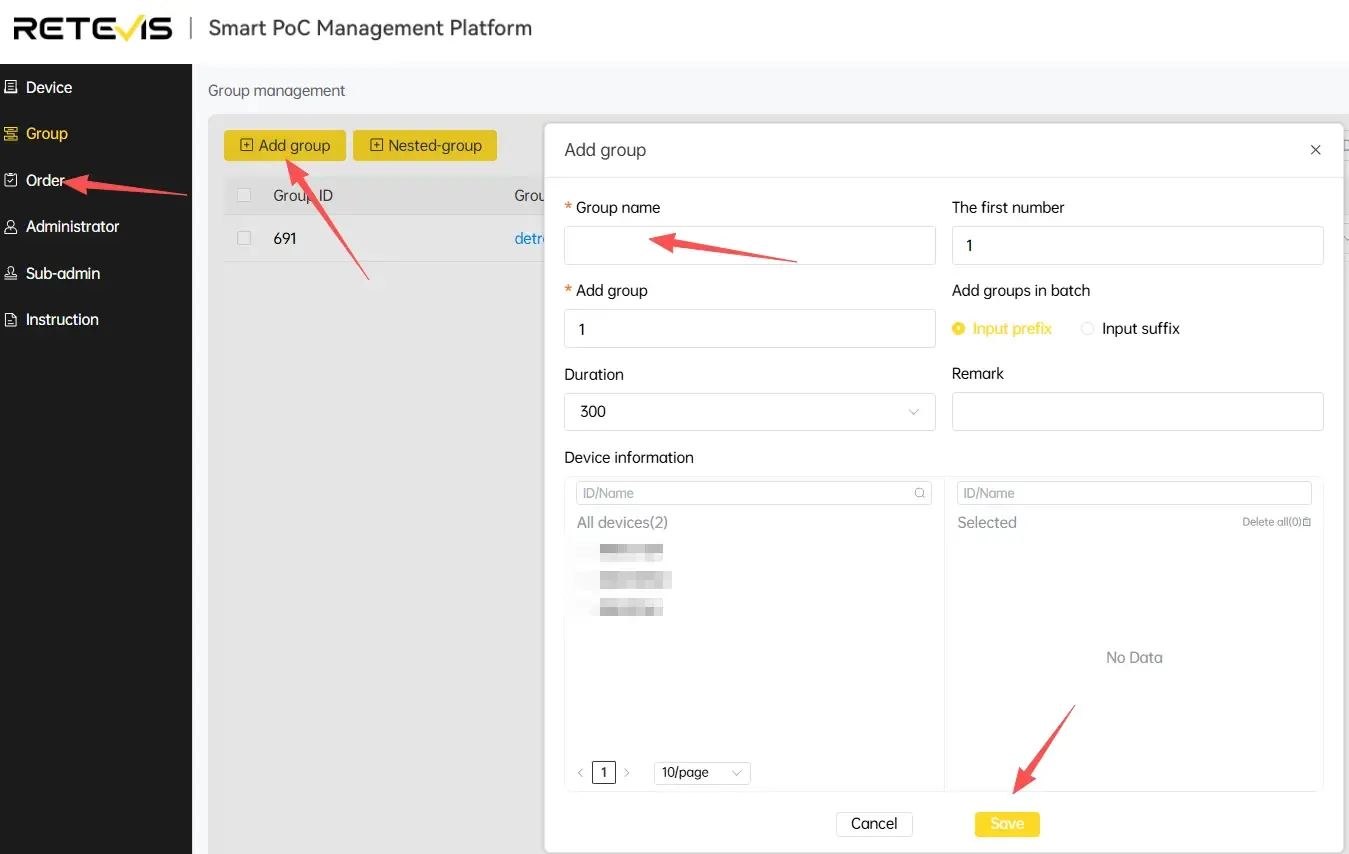
4.3 Add Devices to the Group
- Select the group you created → click "Add Device".
- Enter the Device ID (from the OTA interface) and any other required details (please follow the accompanying operation guide).
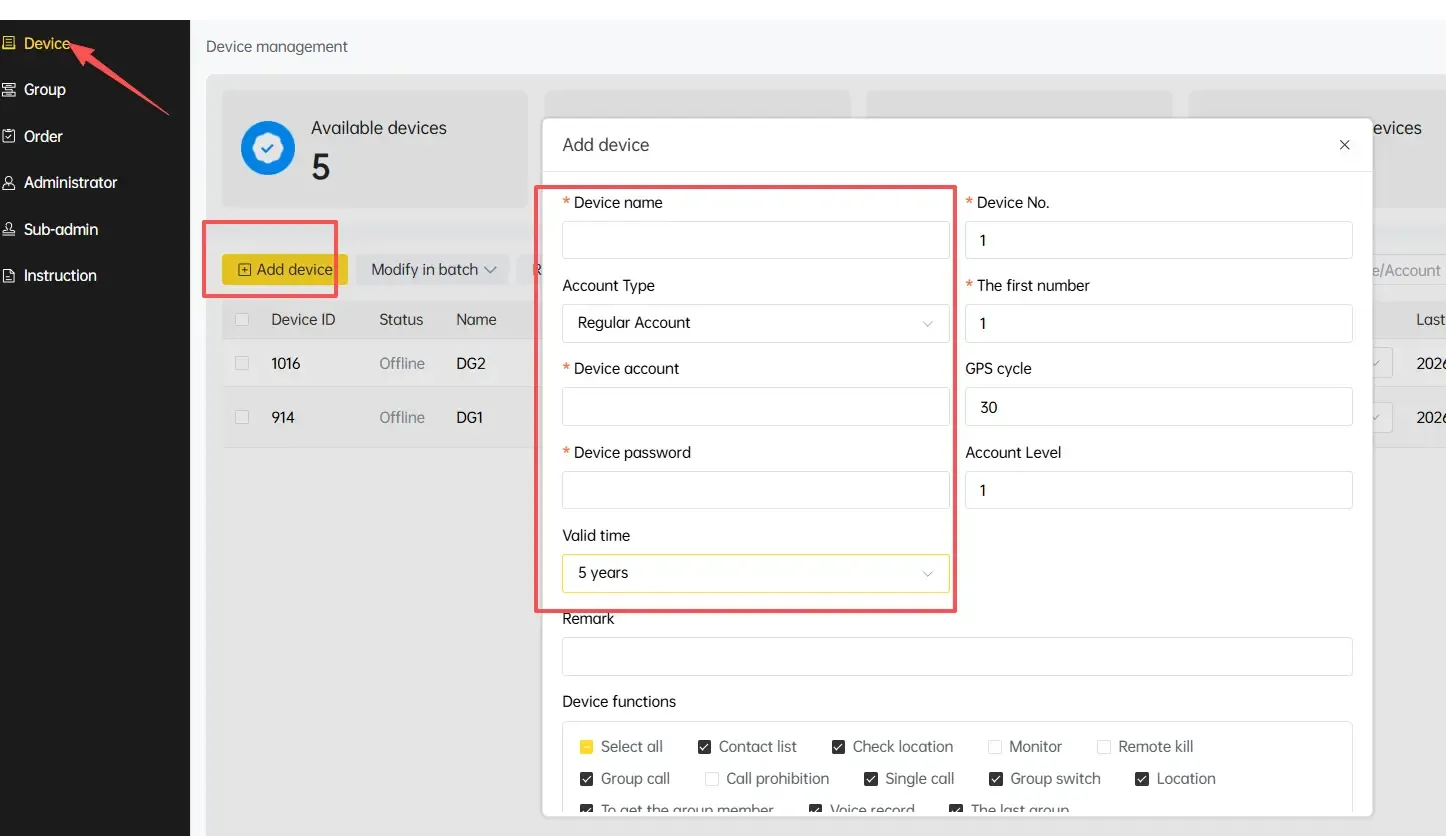
Fill in the device information as follows:
- Name: a name you assign to the device.
- Account: the ACC shown on the radio.
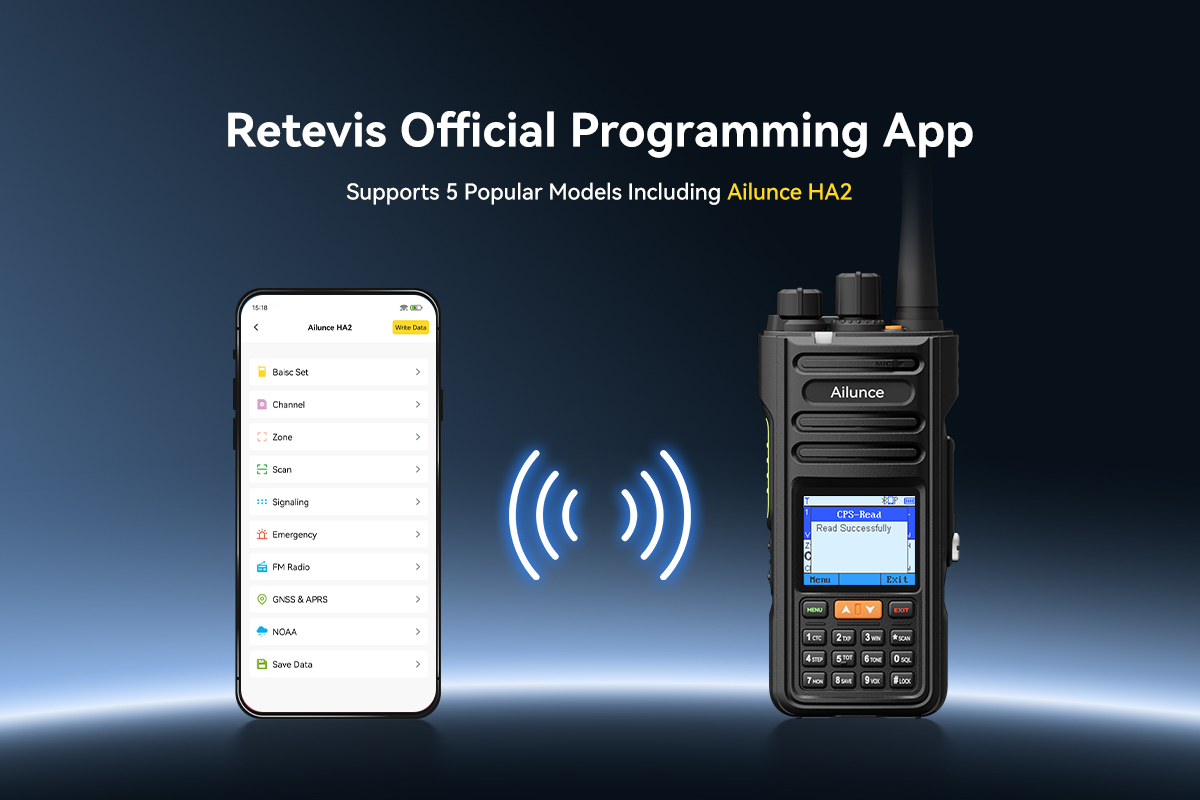
- Password: default is 111111. To change it, download the software from the Retevis official website and modify it via OTA programming.
- Valid Time: 5 years.
- Options: aside from "Disable Call" and "Remote Terminate" (which should remain unchecked), you may freely select the other options.
- Add Group: select the group created in the previous step.
- Save: click "Save" to bind the device.
Note: For multiple radios: repeat the "Add Device" step for each device. Devices added to the same group can communicate with each other.
Step 5: Dispatching Platform
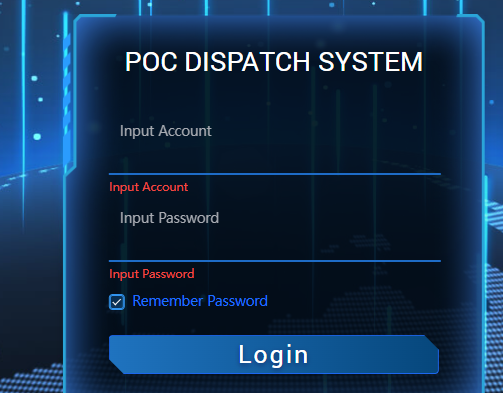
New Dispatching Platform: https://retevispoc.com/dispatcher/login
The account and password are the ACC and password shown on the radio.
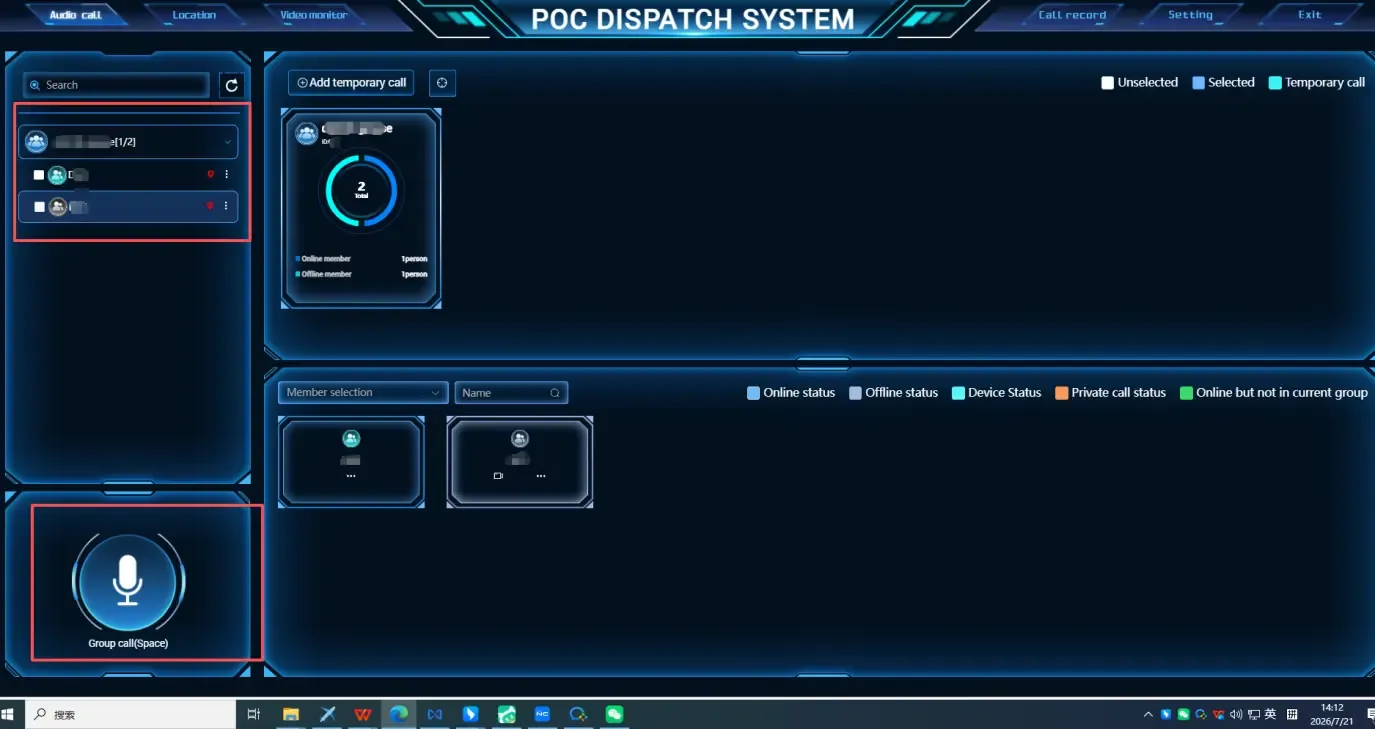
After logging in, you can view the online status and location of group members, make group calls, and contact customer service.
Contact Support
For technical support, please contact your sales representative or the Retevis support team: [email protected]






 Google
 Amazon
Comments (1)